Printful's Scale down button fixes the warning. It doesn't fix the print.
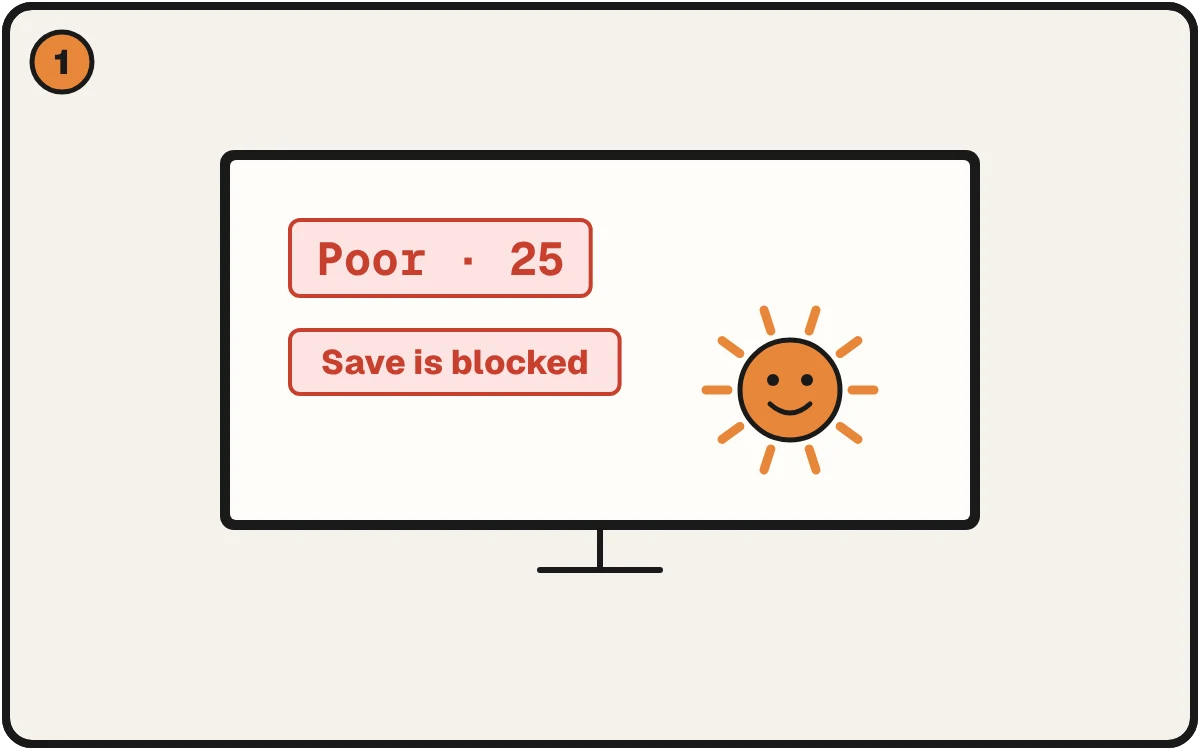
Poor. Printful will not let you save.
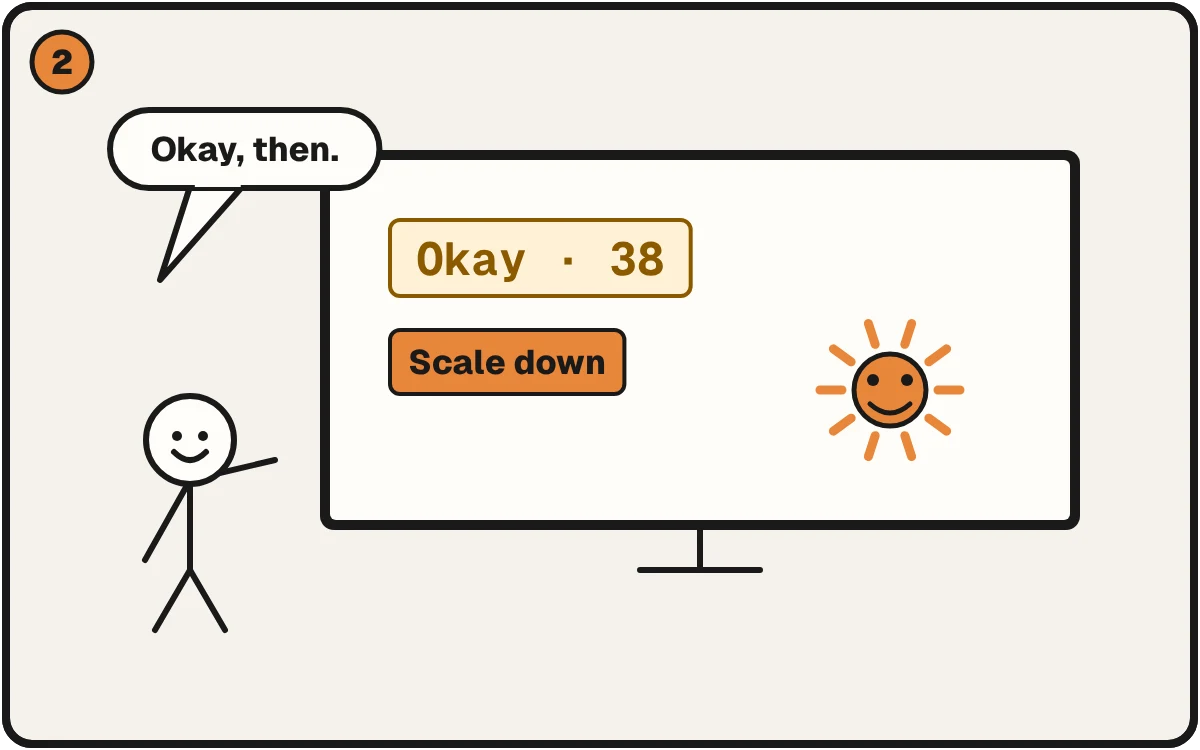
One click on Scale down and the warning is gone.
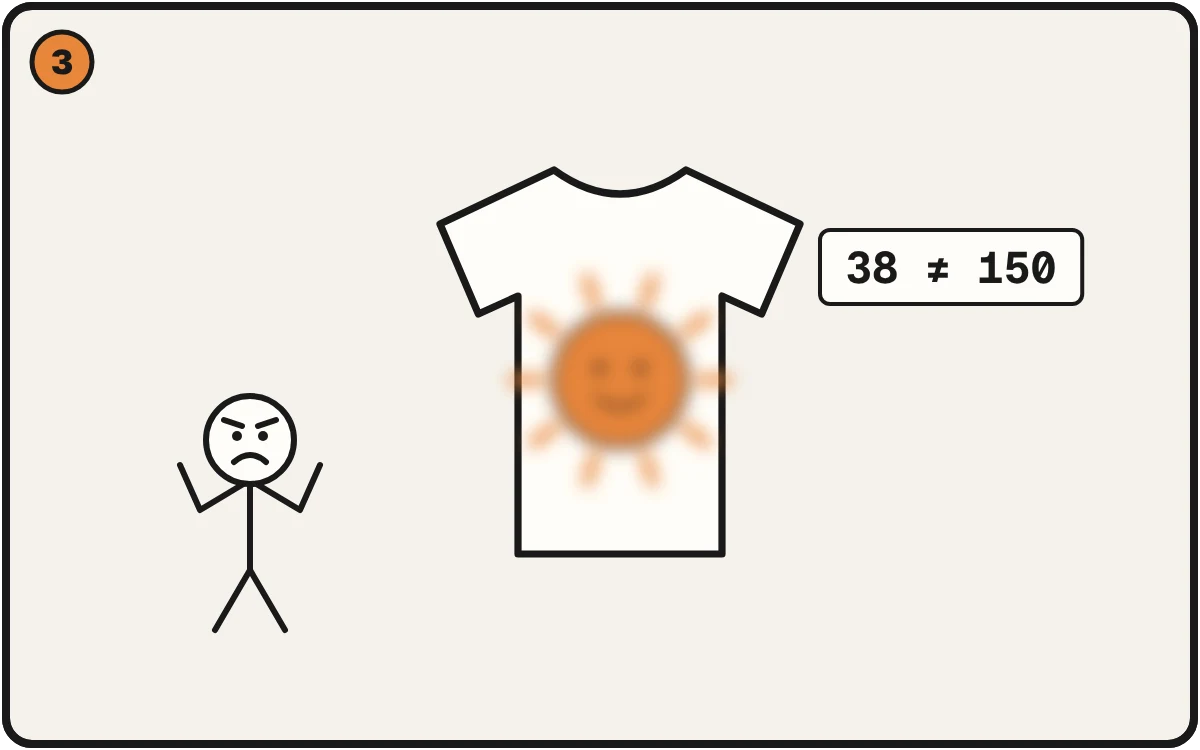
Same pixels, smaller print. It can still come out soft.
What we saw
On November 6, 2026, we put a small test file on a shirt front in Printful's Design Maker. At 12 inches wide it showed a red Poor and the message "Your image doesn't meet our print requirements." Save was greyed out.
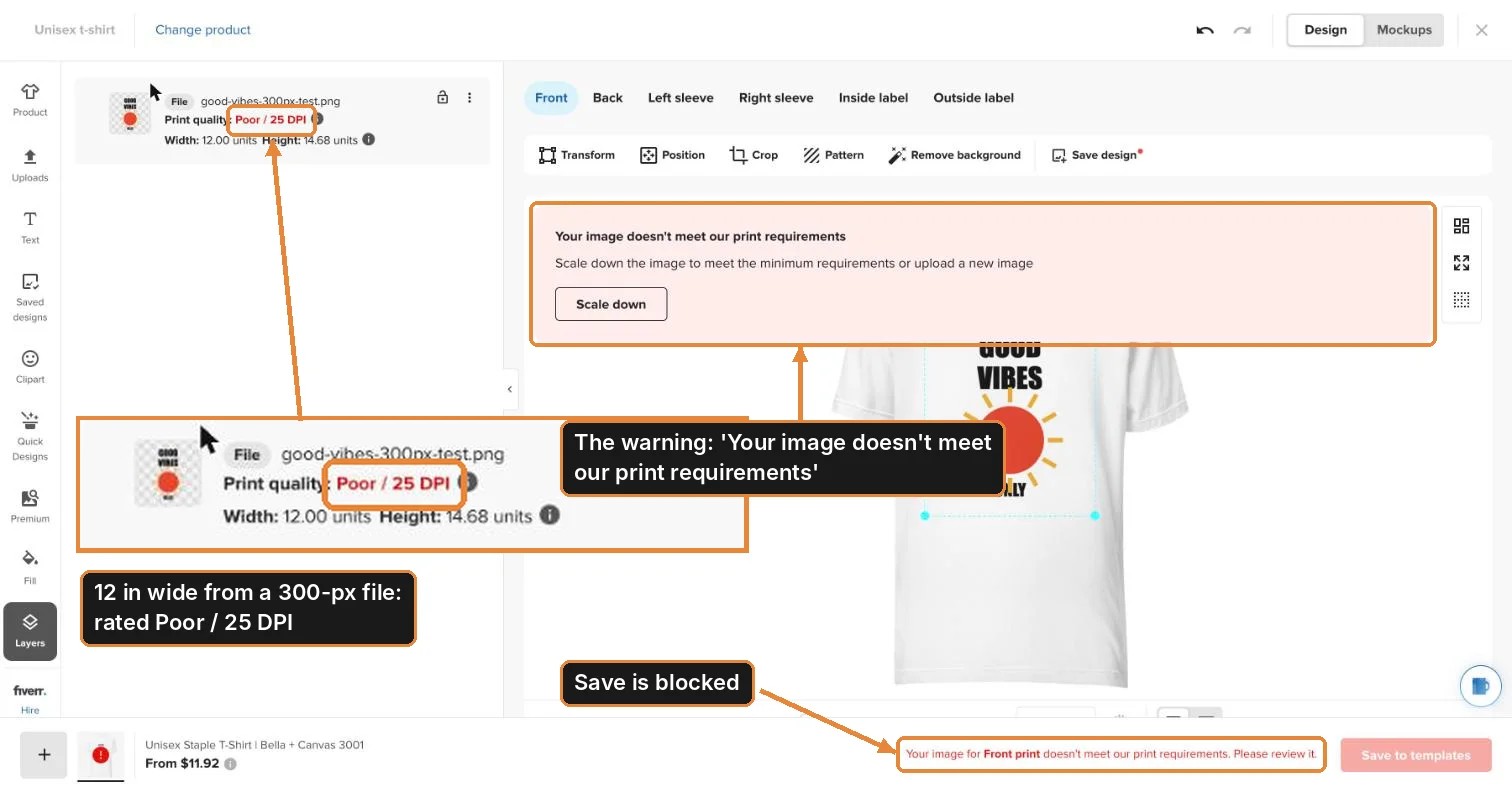
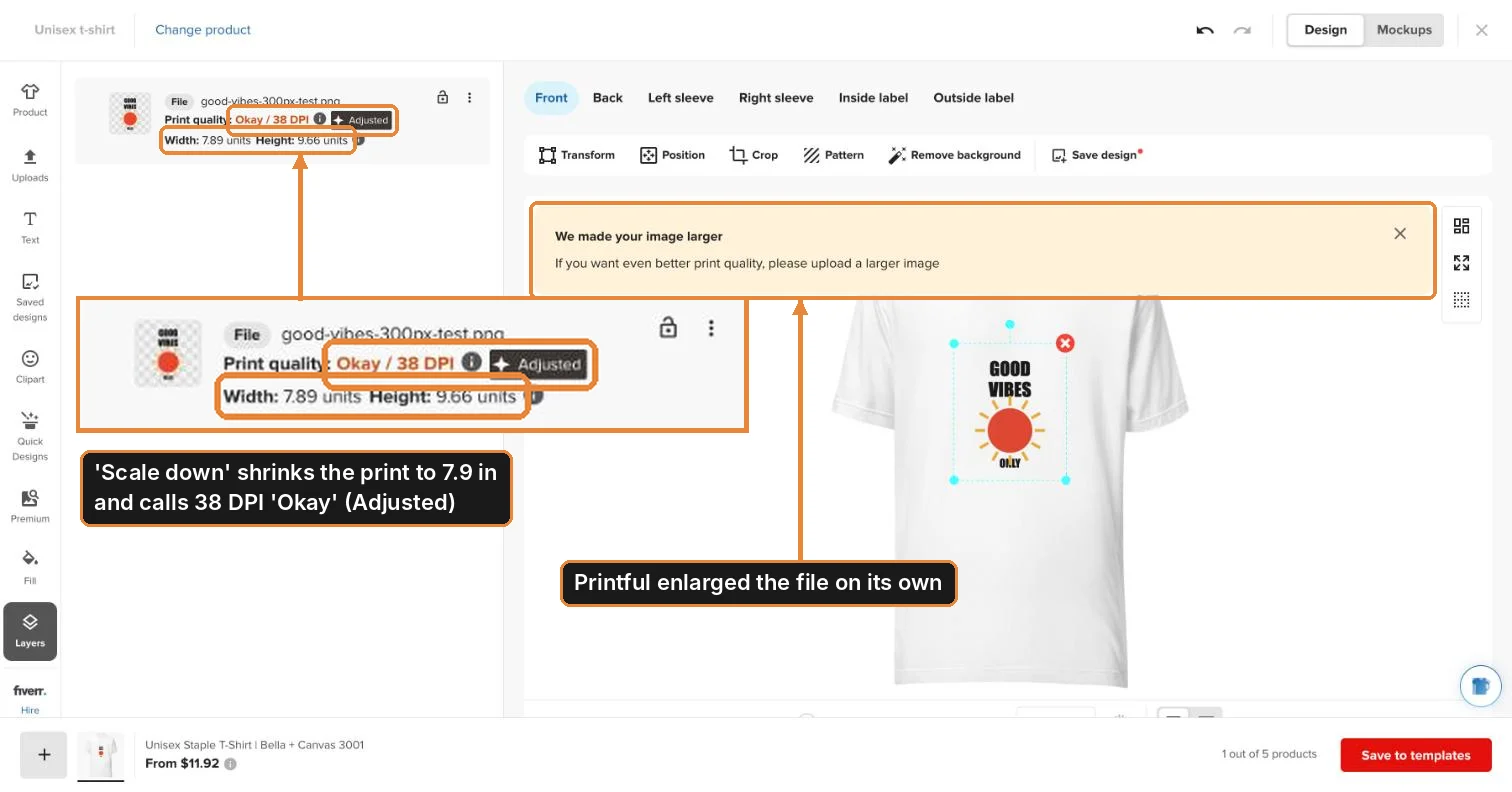
Then we clicked Scale down. The print shrank to 7.89 inches. The rating changed to Okay, a notice said "We made your image larger," and saving was allowed.
Why it still prints soft
DPI is how many pixels fit in each inch of print. Scale down only made the print smaller. It didn't add a single pixel. 300 pixels over 7.89 inches is 38 per inch.
Printful's DTG file guide asks for at least 150 at print size (checked November 2026). At 38 you're about four times short, and the print can look soft even though the screen says Okay.
How to catch it before you upload
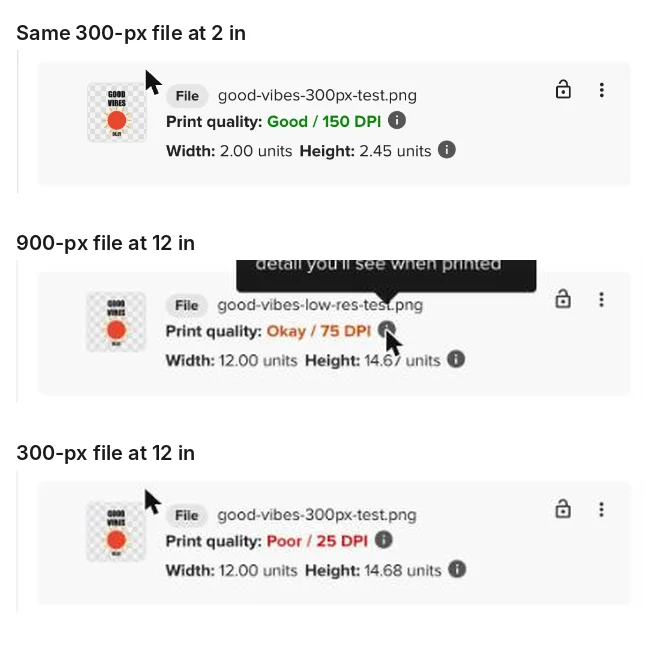
Do one division: pixels across ÷ inches you'll print = your real number. Printful's floor is 150. For a sharp print, aim for 250 to 300.
Not sure of the pixel count? Check a File Free. Pick your print size and it tells you if the file holds, with the fix next to anything that fails.
Seeing the warning instead? Here's the number Printful wants.