If a checkerboard or white box printed on your shirt, your PNG only looked transparent. The background was still in the file.
It happens more than you'd think. The design looked clean on your screen, so the file looked done.
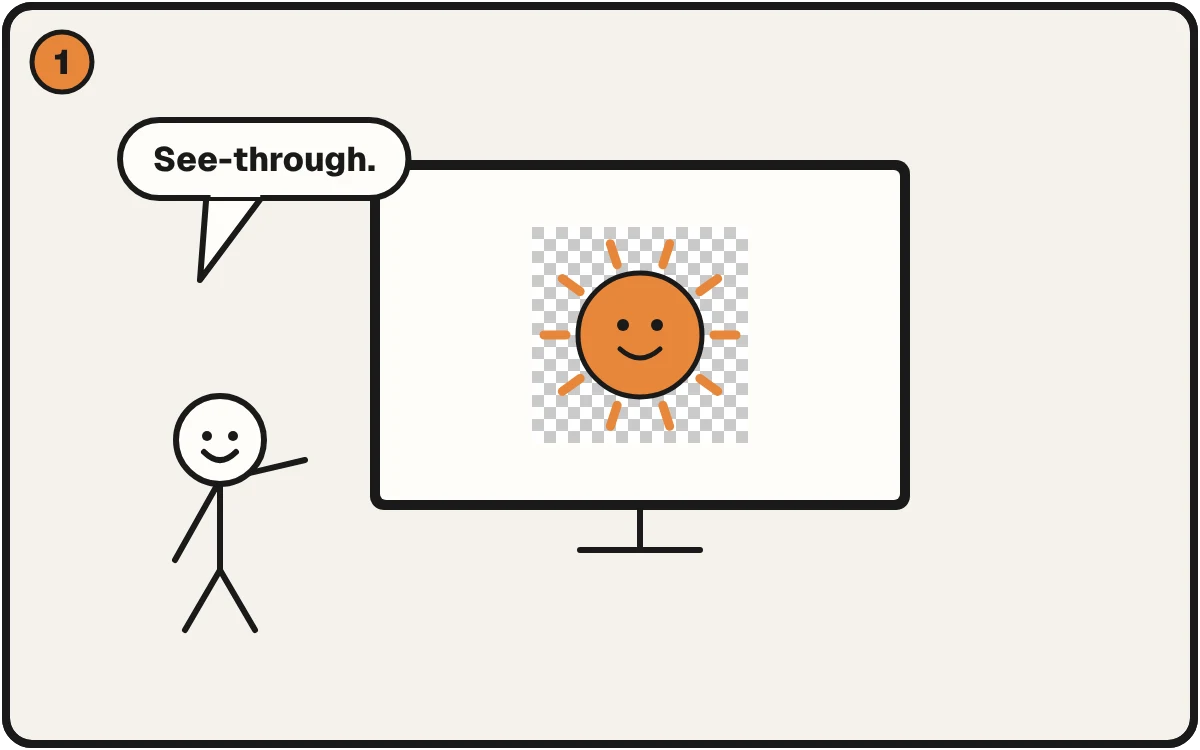
On screen, the gray checkerboard means “nothing here.”
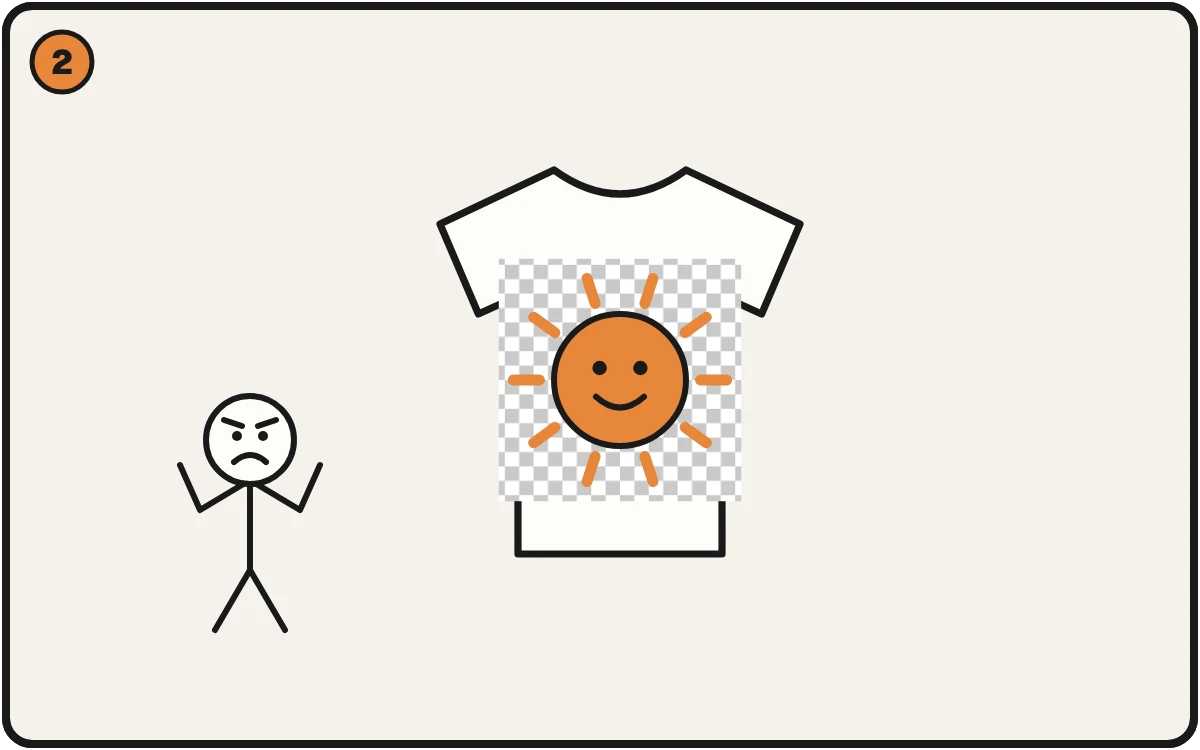
If the checkerboard got saved into the picture, it prints too.
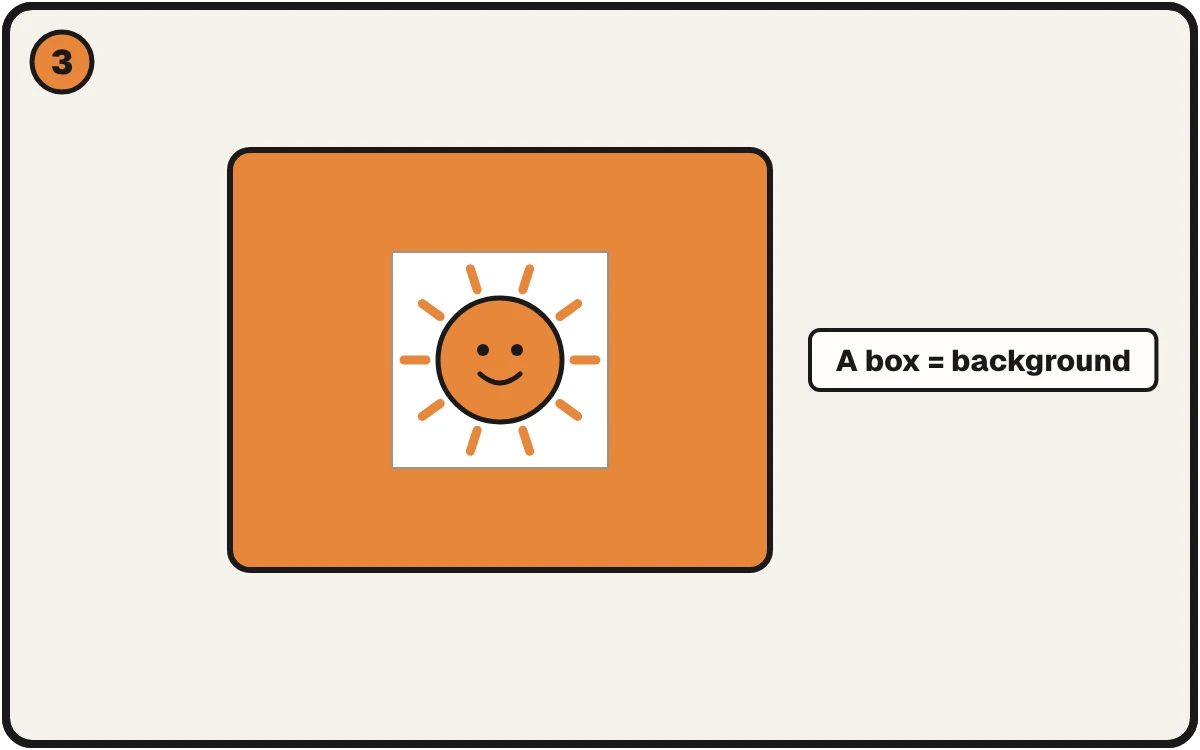
Test it on a bright color. If you see a box, the background is still there.
The three ways a PNG fakes it
1. The checkerboard is part of the picture. Editors show a gray-and-white checkerboard to mean "nothing here." If someone screenshots that, or saves from a preview, the checkerboard becomes real pixels, and the printer prints it.
2. The background is white, not clear. White looks like nothing on a white page. On a shirt, DTF prints white as ink.
3. The edges are almost clear. Background removers often leave a thin fringe of half-transparent pixels around the design. They look invisible. On a dark shirt they print as a pale outline. (See white haze on DTF.)
Check it in a minute
Put the file on a bright color. Open it in anything that lets you set a background color, or drop it on a colored page. If you see a box, a grid, or a pale ring, it isn't clean.
Easier: drop it into the free print check. It looks at the pixels, not the picture, and tells you what's behind the design.
How to fix it
- Checkerboard or white box: take out the background color. Color Knockout removes a flat color like white without touching the rest. No Photoshop.
- Busy background: use background removal in the editor. It handles hair and complex edges.
- Pale ring at the edge: clean the half-transparent pixels. Fix All finds and clears them, then checks the file again.
You see the plan before it runs.
Why we keep seeing it
Across thousands of orders, "there's a background" was at the top of the list. Customers aren't careless. The screen showed them something that looked right.
More checks before you send a file: the DTF file checklist.