On a black shirt, the black in your design either disappears or prints as a dark, heavy patch of ink. The fix is to remove the black so the shirt shows through.
That's called a color knockout. You take one color out of the file and leave everything else alone.
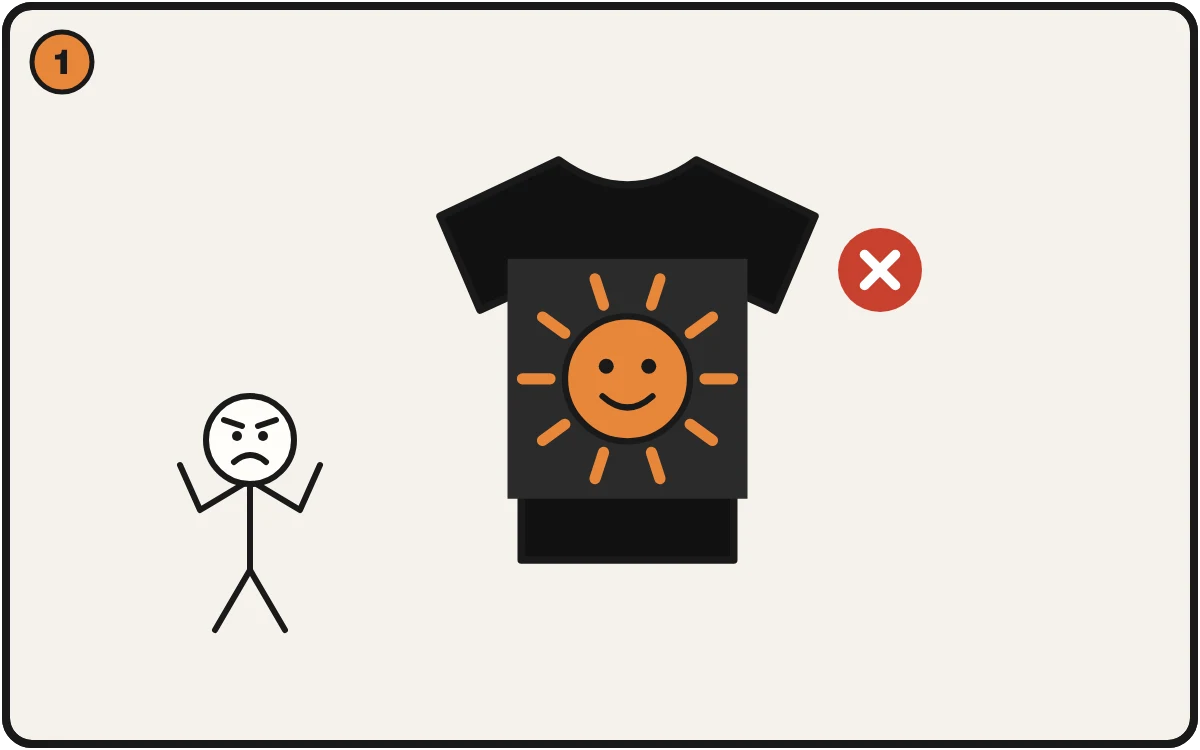
Black art on a black shirt prints as a dark, heavy patch.
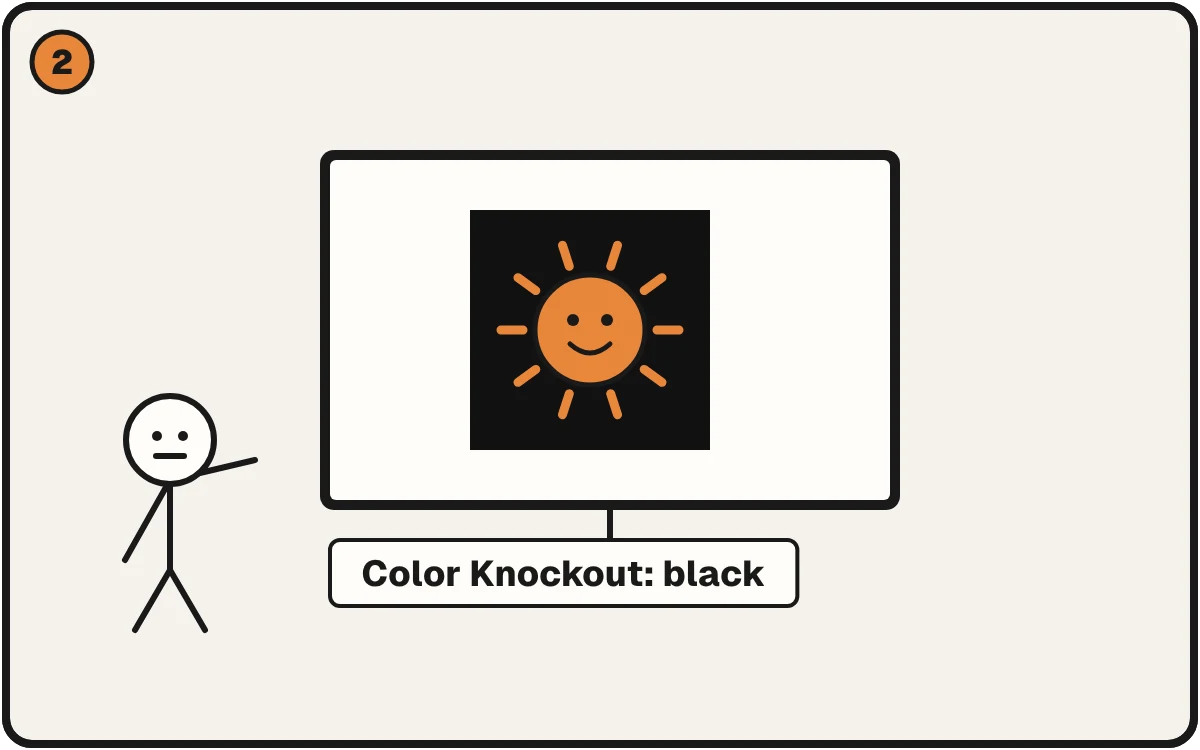
Color Knockout takes the black out of the file and leaves the rest alone.
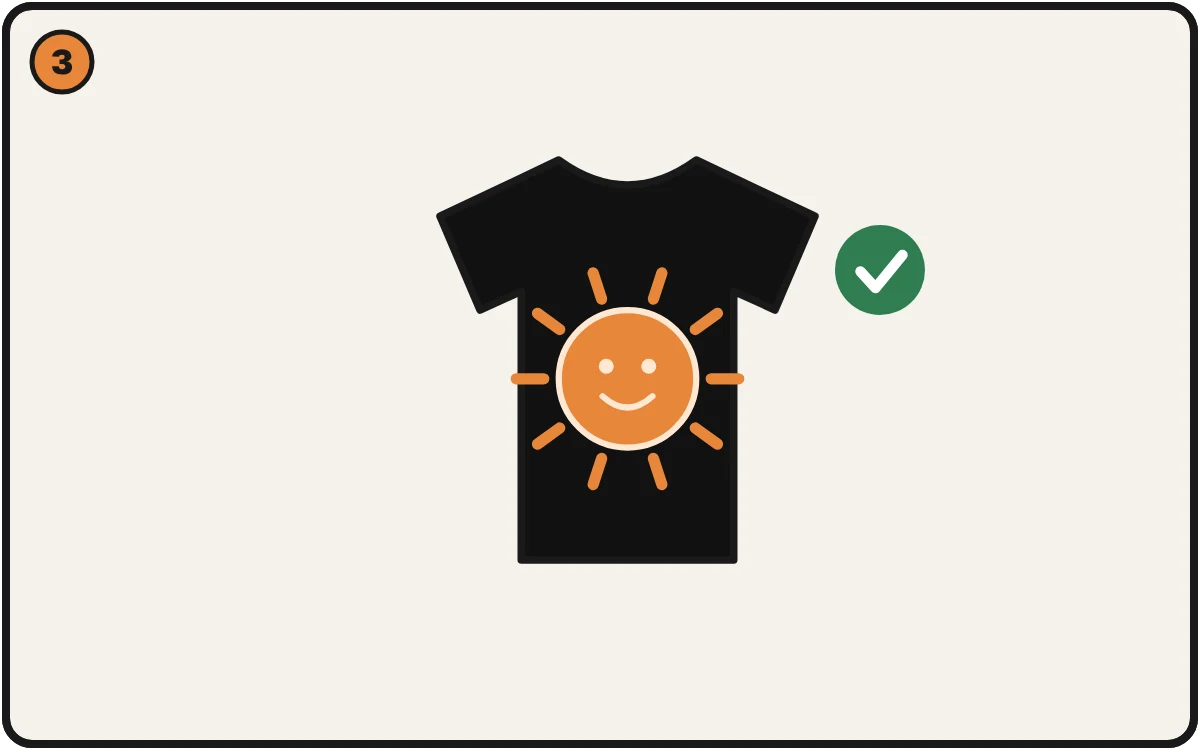
The shirt shows through, so the shirt becomes your black.
What's going on
Black art on a black shirt does one of two things:
- It prints as black ink on a black shirt, so you get a dark patch with little detail that feels heavier on the shirt.
- It looks like a box. If the design came with a black background, that background prints as a rectangle.
And a black background on a black shirt isn't "transparent". The printer can't know you meant "nothing here".
The fix: knock out the black
Remove the black from the file. The shirt shows through where the black was, so the shirt becomes your black. There's less on the shirt, so the print usually feels lighter and softer, and the detail in the dark areas stays.
For art with soft shades (fades, photos), use it together with halftone dots so the darker tones don't fill in. Why fades turn to mud.
How to do it
- Open the file in the editor.
- Choose Color Knockout.
- Pick the black from the colors it finds in your file.
- Process it, check the result, and download the cleaned file.
Color Knockout runs free in your browser. It removes a flat color without touching the rest of the art. No Photoshop.
Before you press
Check a File Free first and choose a dark fabric. The check warns you about anything that won't hold on that color. Quick version: Design disappears on a dark shirt.